AEM Template Policies: Give Authors Useful Boundaries
How content policies control component availability, styles, and preconfigured options without turning page authoring into a manual review process.
The rule behind an authoring choice
An editable template gives a page its frame. It does not, by itself, decide whether a particular container may contain a Carousel, which Button variants an author may select, or which Image settings are appropriate for this page type.
Those are policy decisions. A content policy defines the approved choices for a component in a template. It is a boundary, not a replacement for component design: authors can make the choices the project has designed and tested, without having to memorize every rule.
Why the boundary matters
A site with several page types and authoring teams needs more than a component library. It needs a shared decision about where a component belongs and which of its options are valid.
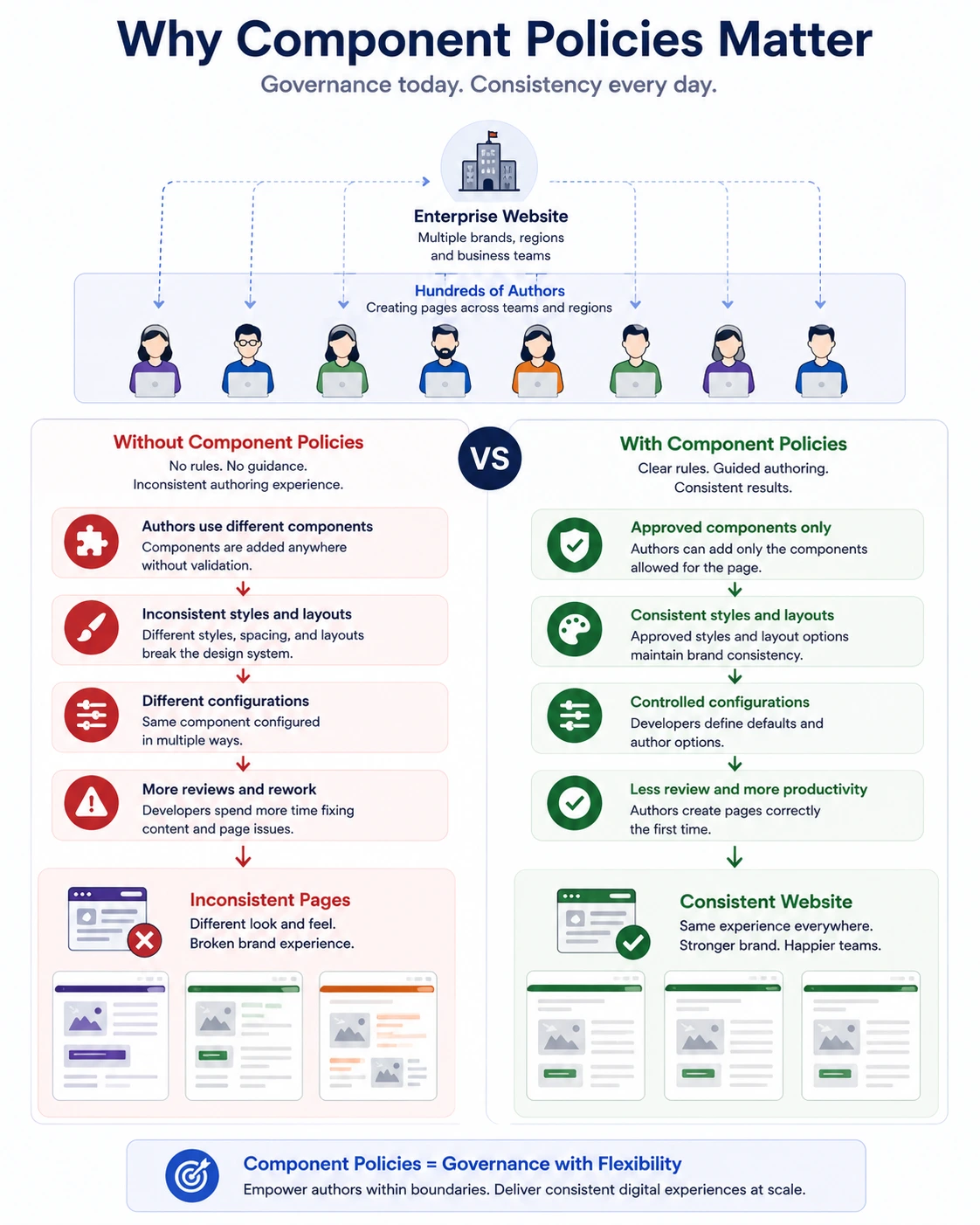
Without that boundary, authors may:
- Add components that don't belong on a page
- Apply inconsistent layouts
- Use different styles for the same content
- Configure components in unexpected ways
The result is an inconsistent authoring experience and more corrections at the page level. A policy makes the decision once in the template instead of relying on each author to remember it.
What a Component Policy controls
A Component Policy defines how a component can be used within an Editable Template. A template author, working with the developers who implement the component, exposes the approved options that match the project's requirements.
For example, the policy can decide:
- Which components can be added inside a Layout Container
- Which styles are available for a component
- What default configuration should be applied
- Which authoring options should be enabled or disabled
Policies do not control what authors write. They control the boundaries within which authors create content.
How Component Policies Work
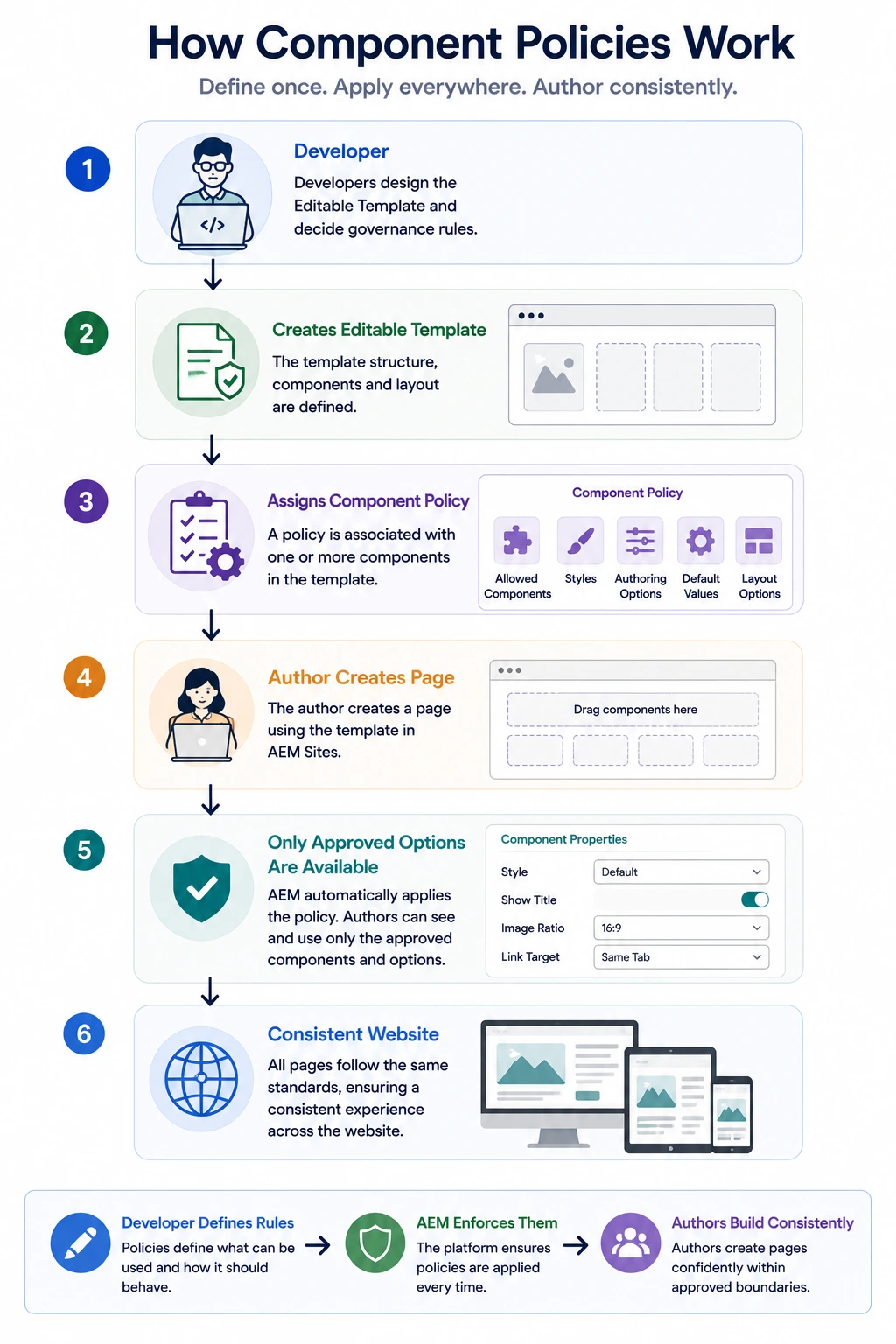
Template authors create or select policies in the Template Editor and associate them with components in the template. Developers supply the component implementation and its supported options; design and content teams should agree which of those options are appropriate.
When an author edits a page built from that template, AEM presents the configured choices. The policy can also be reused by other templates when the authoring boundary is the same.
What Can Component Policies Control?
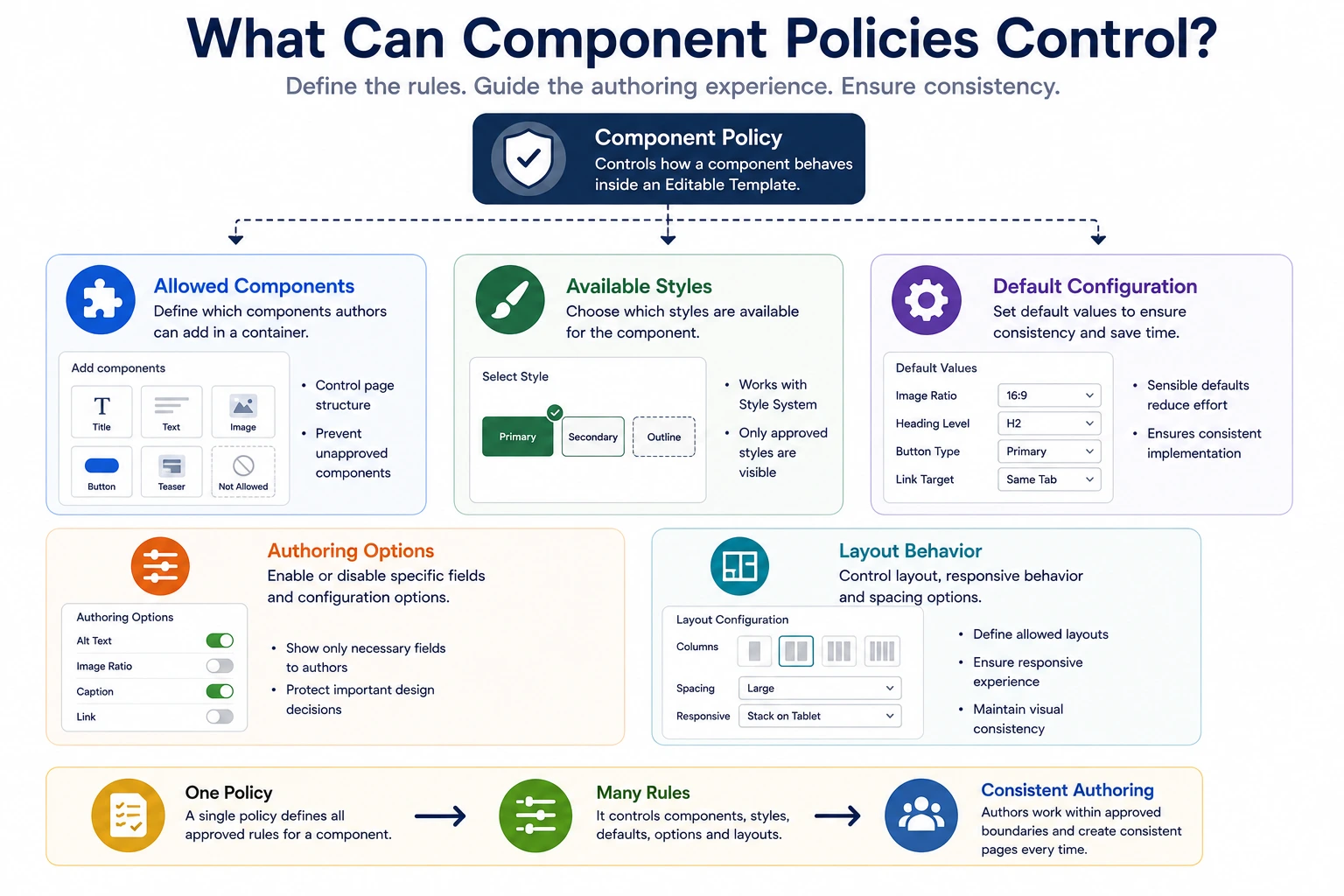
A Component Policy preconfigures and limits the authoring choices a component exposes within an Editable Template. It does not add a capability the component implementation does not support.
The available options depend on the component. Template authors choose the options that match the project's requirements.
Some of the most common policy configurations include the following.
Allowed Components
For container components such as the Layout Container, developers can define which components authors are allowed to add.
For example, a marketing page might allow:
- Title
- Text
- Image
- Button
- Teaser
Components that aren't approved simply won't appear in the component browser for that container.
This helps keep page structures consistent across the website.
Available Styles
Component Policies work closely with the Style System.
The component and project design define which styles are supported, and the policy determines which of those styles are available to authors.
For example, a Button component might expose:
- Primary
- Secondary
- Outline
Authors can only choose from these approved styles.
Default Configuration
Policies can define sensible default values for a component.
Examples include:
- Default image ratio
- Default heading level
- Default button behavior
- Default spacing
These defaults reduce repetitive authoring while maintaining consistency.
Authoring Options
The policy can expose or restrict specific component configuration options.
For example, an Image component might allow authors to change the alt text while preventing them from modifying the image ratio.
This ensures important design decisions remain consistent across the project.
Layout Behavior
For Layout Containers, policies can define:
- Allowed layout configurations
- Responsive behavior
- Spacing options
- Column settings
This allows authors to build flexible layouts without breaking the overall page design.
Together, these capabilities make Component Policies one of the primary governance mechanisms in modern AEM projects.
Example: one policy across regional sites
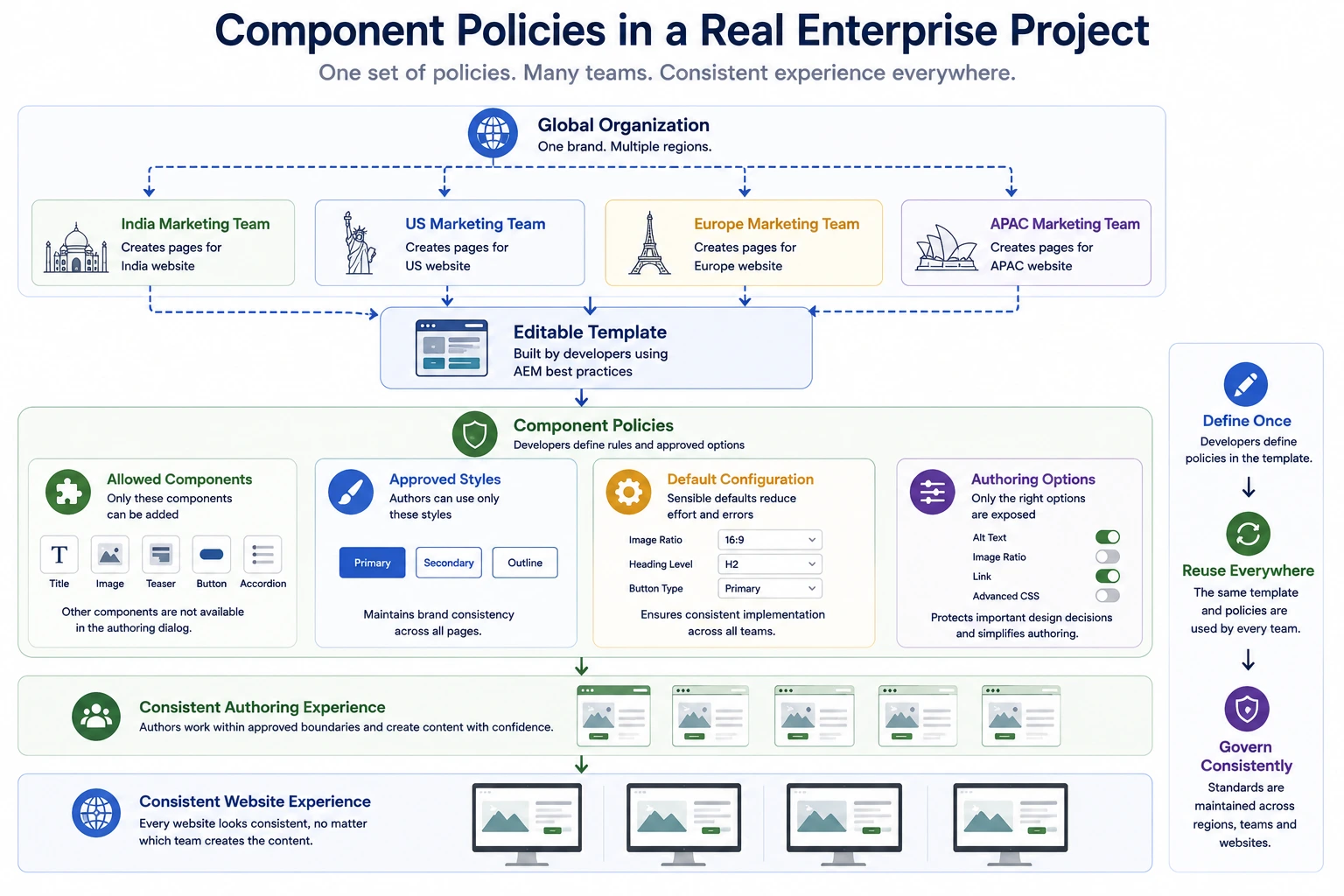
Consider a healthcare organization with regional sites managed by separate marketing teams.
Although the content differs from one country to another, every website must follow the same corporate design standards.
To achieve this, the development team creates a set of Editable Templates with predefined Component Policies.
For example, the Layout Container policy allows only approved components such as Title, Image, Teaser, Button, and Accordion.
The Button component exposes only the approved styles defined by the design system.
The Image component provides a default aspect ratio and hides configuration options that authors shouldn't modify.
When a marketing author creates a new page, they simply work within these predefined options.
They don't need to remember every design guideline because the template already enforces them.
As new pages are created across different countries, the websites remain consistent even though different teams are managing the content.
This approach allows developers to focus on building reusable functionality while authors concentrate on creating business content.
The result is a reusable authoring model: regional teams can vary content without bypassing the shared component and design decisions.
The decision to carry forward
Use a policy when a component needs a small, repeatable set of authoring choices. Keep the policy close to the component's actual responsibility. If a requirement changes the content model, semantic markup, or runtime behavior, it is not merely a policy option.
Next: Layout Containers and Responsive Grids use those policies to give authors a controlled place to compose a page.
Enjoyed this chapter?
Get an email when I publish the next chapter. No spam — just new technical deep-dives.
Comments
Share feedback or questions about this blog post.
No comments yet. Be the first to share your thoughts.